
What the compliance portal does not tell you about your Microsoft 365 audit data
The Microsoft 365 unified audit log captures an enormous amount of activity — user sign-ins, application usage, document events, Teams interactions, administrative changes. Microsoft retains this for 180 days on standard licences, and up to a year for E5 or Microsoft 365 E5 Compliance licences. That data exists in your tenant regardless of how you access it.
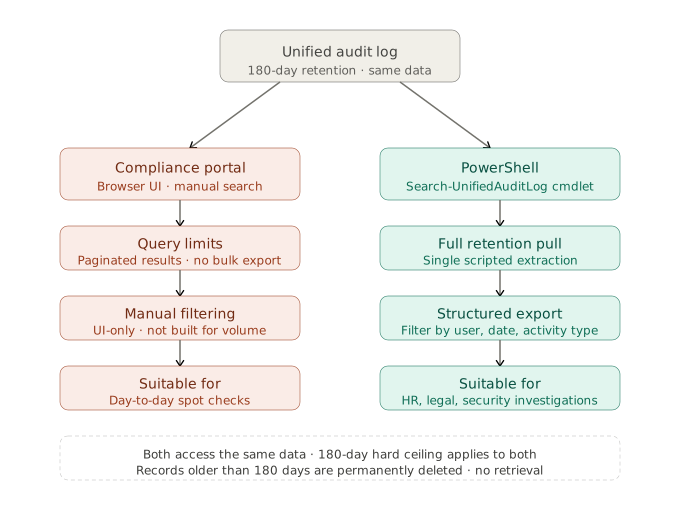
The problem is that the compliance portal surfaces this data through a search interface with a 180-day query limit and no bulk extraction capability. It is built for checking specific events, not for systematically pulling an entire user’s activity history across weeks or months and turning it into a coherent, evidenced picture.
PowerShell — specifically the Search-UnifiedAuditLog cmdlet in Exchange Online — gives you programmatic access to the same underlying data, without the interface constraints. You can extract the full retention window in a single scripted pull, filter by user, date range, and activity type, and export everything to a structured format that is actually workable. If your team can connect to Microsoft 365 via PowerShell and holds global admin rights or the appropriate audit log role, this capability already exists in your environment.
The volume problem in Microsoft 365 security investigations
This is where the real challenge begins and where most manual investigations fall apart. The unified audit log is not a clean timeline of meaningful events. It is an extremely detailed record of almost everything that happens inside a tenant, including a large volume of background activity that has nothing to do with what you are investigating.
OneDrive synchronisation check-ins. Background service authentications. Automated file version events. In a recent investigation, roughly 6,000 of 8,000 extracted log lines were background noise. That ratio is not unusual. Working through it manually — filtering by event type, correlating IP addresses, building a timeline — is the kind of task that consumed days before AI-assisted analysis was available.
The same investigation now takes hours. With AI handling the filtering and pattern identification, the administrator can direct the analysis toward what actually matters: sign-in timestamps correlated to physical locations via public IP, Teams activity windows, document edits with timing, sign-off events. Across a defined period, you can establish with reasonable confidence what a user was doing, when they were doing it, and from where.
You will not get the content of messages or document text. But you can establish patterns — and patterns, properly documented against the raw extract, constitute evidence rather than assumption. The resulting report references every conclusion back to specific log entries. That matters when the output is going to HR, legal, or a client’s senior leadership.
What you lose when the Microsoft 365 retention window closes
The retention window is a hard ceiling, not a soft guideline. For Audit Standard licences, records older than 180 days are permanently deleted — there is no grace period, no archive, and no retrieval once the window closes. On day 181, the oldest records simply disappear.
This matters for the framing of any investigation. If an incident is discovered six months after it occurred, most of the relevant data is already gone. If questions arise about a departing employee’s activity from eight months ago, the evidence does not exist to recover. The only protection is either higher-tier licensing that extends the retention window, or a proactive threat monitoring solution that pulls and stores audit data continuously to your own environment.
Most organisations discover this limitation mid-investigation, not before.
The 180-day retention ceiling is not a technical footnote — it is a strategic risk. Organisations that discover the limitation mid-investigation have already lost the evidence they needed. The question is not whether your audit logs retain data, but whether they retain it long enough, and whether you can act on it at the scale an investigation demands.
The practical question to ask now about your audit log readiness
The Microsoft 365 compliance portal will handle most day-to-day audit needs without issue. The situation where it falls short is a serious investigation — HR, security, legal — requiring bulk extraction, systematic analysis, and an evidence-standard output.
Knowing your retention ceiling before you need it is considerably easier than discovering the limitation when you are already in the middle of something that matters. If you are not certain what your current licence tier captures, how far back your logs actually go, or how you would approach a bulk extraction if you needed one — that is worth establishing now, with your managed IT services provider, rather than under pressure.
If your environment does not have continuous audit log collection in place, a managed threat detection service is the most practical way to close that gap — pulling, storing, and making your Microsoft 365 activity data available beyond the native retention window, and surfacing the events that matter before an investigation makes them urgent.
